NanoLocz
NanoLocz User Guide 1.3-1.4 
Installation - - Getting Started - - Saving Data
Level - -
Detect - -
FineAlign - -
Localize
Area Analysis - - Keyboard Shortcuts
Simulation AFM - - YouTube Video Tutorials
Installation of NanoLocz
To download the file needed go to Releases.
Download one of the following files from assets.
Windows desktop app
- Download: NanoLocz Windows Installer.exe file from Releases.
- Unzip and run the exe to install.
- Admin rights likely needed to install.
- Note: loading on start-up of the app can take longer the 1st time running (up to 1 min) for Windows versions
Mac desktop app
- Download NanoLocz_Mac_Installer_web.app.zip file from the assets in Releases.
- Unzip and run the app file to install.
- You may get an “NanoLocz can’t be opened because it is from an unidentified developer” message, which can be bypassed by right clicking on NanoLocz_Mac_Installer_web.app and selecting “Open” from the drop down menu.
- Note: loading on start-up of the app can take longer the 1st time running (up to 1 min) for Mac versions
Dealing with the macOS error “is damaged and can’t be opened” when installing software is common when the app isn’t digitally signed and notarised by Apple.
How to fix by removing the specific security flag that macOS places on downloaded files (the com.apple.quarantine attribute).
Step 1: Open Terminal
- Open Finder.
- Navigate to Applications $\rightarrow$ Utilities.
- Double-click Terminal to launch it.
Step 2: Run the xattr Command
This command removes the quarantine flag that triggers the “damaged” error.
- In the Terminal window, type the following command exactly as shown, but DO NOT press Enter yet:
sudo xattr -d com.apple.quarantine
-
Open Finder and locate your downloaded installer file, which is likely named
NanoLocz_1_4_Mac_Install.app. -
Drag and drop the installer file directly from the Finder window into the Terminal window. This will paste the full and correct file path after the command you typed.
-
The final command should look similar to this (the path will be unique to your machine):
sudo xattr -d com.apple.quarantine /Users/YourName/Downloads/NanoLocz_1_4_Mac_Install.app -
Press Enter.
-
The Terminal will prompt you for your administrator password. Type your password (no characters will appear on the screen as you type) and press Enter again.
Step 3: Run the Installer
The security flag has now been removed. You can now try to open NanoLocz_1_4_Mac_Install.app directly from the Finder. It should launch the installer without the “damaged” error.
Youtube video: Desktop standalone app Installation
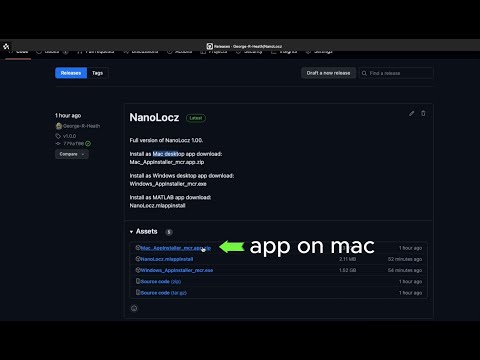
MATLAB app
1. Install MATLAB
Download and install MATLAB 2020 or later. During installation, ensure the following toolboxes are selected:
- Curve Fitting Toolbox
- Image Processing Toolbox
- Signal Processing Toolbox
- Statistics and Machine Learning Toolbox
- Bioinformatics Toolbox
- Computer Vision Toolbox
2. Download NanoLocz
Download the appropriate NanoLocz installer from the
GitHub Releases page:
-
MATLAB 2020–2024
Use:NanoLocz.1.41.pre2025_Matlab.mlappinstall -
MATLAB 2025 and later
Use:NanoLocz_v1_41_2025-2026_Matlab.mltbx
3. Install NanoLocz
Double-click the downloaded .mlappinstall or .mltbx file.
- MATLAB will launch automatically if it is not already open.
- Follow the on-screen prompts to complete the installation.
4. Launch the App
Once installed, NanoLocz can be found in the Apps tab in MATLAB.
For quicker access:
- Right-click the NanoLocz app icon
- Select Add to Favourites and/or Add to Quick Access Toolbar
Youtube video: MATLAB app Installation